Questions & answers
Can I delete all apps from my Apple Watch?
No, you cannot delete all apps from your Apple Watch. Essential built-in apps like Activity, Workout, and Heart Rate are integral to the watchOS and cannot be removed. You can delete most third-party apps and some pre-installed Apple apps through either your watch or the paired iPhone, allowing for significant customization and decluttering.
Does deleting an app from my Apple Watch also delete it from my iPhone?
Generally, deleting a third-party app directly from your Apple Watch does not automatically delete its corresponding app from your iPhone. However, if you delete an app via the iPhone Watch app by toggling off 'Show App on Apple Watch' or selecting 'Delete App', it removes it from the watch. The iPhone app usually remains unless you specifically choose to delete it from the iPhone's home screen.
How do I reinstall an app I accidentally deleted?
Reinstalling a deleted app on your Apple Watch is straightforward. Open the App Store on your Apple Watch or the Watch app on your iPhone. Search for the app you wish to reinstall. If you previously owned it, a cloud icon will appear; tap it to download. If not, tap 'Get' to re-download it. The app will then reappear on your watch.
Why is there no 'X' to delete an app on my Apple Watch?
If you don't see an 'X' icon when long-pressing an app on your Apple Watch, it usually means it's a core Apple app that cannot be deleted directly from the watch itself. Some pre-installed Apple apps also lack this option. For these, you might be able to remove them by going through the Watch app on your paired iPhone, if deletion is supported at all.
Will deleting apps improve my Apple Watch's battery life?
Yes, deleting unused apps can potentially improve your Apple Watch's battery life. Apps, especially those that run in the background or frequently refresh data, consume power. By removing unnecessary apps, you reduce background activity and the demand on your watch's processor and network, leading to better battery performance throughout your day.
Can I delete apps from my Apple Watch if my iPhone is not nearby?
Yes, you can delete many third-party apps directly from your Apple Watch even if your iPhone is not nearby or connected. The process involves long-pressing the app icon on your watch's app grid until it jiggles and then tapping the 'X' icon. However, for certain built-in apps or more extensive management, your iPhone will be needed.
Struggling with a cluttered Apple Watch? Discover the straightforward methods to delete apps on Apple Watch, freeing up valuable space and streamlining your wrist experience. This comprehensive guide walks you through every essential step, whether you're removing third-party applications or managing pre-installed Apple utilities. Learn how to efficiently remove those unused apps directly from your watch or through the companion iPhone app, making your device snappier and more personalized. We cover common pitfalls and offer expert tips to ensure a smooth decluttering process, transforming your Apple Watch into a lean, focused tool tailored to your daily needs. Get ready to reclaim your digital real estate and enjoy a more responsive Apple Watch performance. You'll gain practical knowledge to handle any app management task with confidence, ensuring your Apple Watch functions exactly how you want it to, giving you back control over your wearable technology in 2026 and beyond. This isn't just about deleting; it's about optimizing your entire interaction with your watch for peak usability. Uncover the secrets to a less cluttered digital life right on your wrist, providing clarity and speed where it matters most for U.S. users seeking quick, effective solutions.
Frequently asked questions
Can I delete all apps from my Apple Watch?
No, you cannot delete all apps from your Apple Watch. Essential built-in apps like Activity, Workout, and Heart Rate are integral to the watchOS and cannot be removed. You can delete most third-party apps and some pre-installed Apple apps through either your watch or the paired iPhone, allowing for significant customization and decluttering.
Does deleting an app from my Apple Watch also delete it from my iPhone?
Generally, deleting a third-party app directly from your Apple Watch does not automatically delete its corresponding app from your iPhone. However, if you delete an app via the iPhone Watch app, it removes it from the watch. The iPhone app usually remains unless you specifically choose to delete it from the iPhone's home screen.
How do I reinstall an app I accidentally deleted?
Reinstalling a deleted app on your Apple Watch is straightforward. Open the App Store on your Apple Watch or the Watch app on your iPhone. Search for the app you wish to reinstall. If you previously owned it, a cloud icon will appear; tap it to download. If not, tap 'Get' to re-download it. The app will then reappear on your watch.
Why is there no 'X' to delete an app on my Apple Watch?
If you don't see an 'X' icon when long-pressing an app on your Apple Watch, it usually means it's a core Apple app that cannot be deleted directly from the watch itself. Some pre-installed Apple apps also lack this option. For these, you might be able to remove them by going through the Watch app on your paired iPhone, if deletion is supported at all.
Will deleting apps improve my Apple Watch's battery life?
Yes, deleting unused apps can potentially improve your Apple Watch's battery life. Apps, especially those that run in the background or frequently refresh data, consume power. By removing unnecessary apps, you reduce background activity and the demand on your watch's processor and network, leading to better battery performance throughout your day.
Can I delete apps from my Apple Watch if my iPhone is not nearby?
Yes, you can delete many third-party apps directly from your Apple Watch even if your iPhone is not nearby or connected. The process involves long-pressing the app icon on your watch's app grid until it jiggles and then tapping the 'X' icon. However, for certain built-in apps or more extensive management, your iPhone will be needed.
How to Delete Apps on Apple Watch and Reclaim Your Digital Space
Getting rid of unwanted apps on your Apple Watch is a simple process that can significantly improve your device's performance and free up valuable storage. Whether you're aiming to declutter your app grid or resolve performance hiccups, knowing how to efficiently remove applications is a crucial skill for any Apple Watch user. This guide will walk you through the precise steps to delete apps on Apple Watch, ensuring you regain control over your wearable's digital real estate in 2026.
Many users find their Apple Watch storage filling up with apps they rarely use, leading to slower response times and a less intuitive experience. By the end of this tutorial, you'll be well-equipped to manage your apps directly from your wrist or through the paired iPhone, making your Apple Watch a more streamlined and responsive device tailored to your daily needs. Let's dive into the straightforward methods that make app deletion a breeze.
| Key Action | Benefit | Method |
|---|---|---|
| Delete Third-Party Apps | Frees space, boosts speed | Watch or iPhone App |
| Remove Apple Built-in Apps | Simplifies interface, reduces clutter | iPhone App only (for some) |
| Troubleshoot Deletion Issues | Ensures successful removal | Restart, Update, Re-pair |
| Optimize Performance | Enhances overall user experience | Regular app review |
Understanding Apple Watch App Management
A common frustration for Apple Watch owners is the accumulation of unused applications that quietly consume storage and resources. This invisible drain can manifest as sluggish app launches, delayed notifications, or even reduced battery life. It's not just about aesthetics; a cluttered device directly impacts its efficiency and your overall user satisfaction.
Many folks simply overlook app management on their watch, assuming it's a fixed setup. However, much like your iPhone, your Apple Watch benefits immensely from regular digital decluttering. Keeping only the apps you actively use ensures your watch can dedicate its processing power and memory to those essential functions, making it feel brand new.
The good news is that Apple provides intuitive ways to manage these apps, both directly on your wrist and through the companion iPhone app. Understanding these different pathways empowers you to make informed decisions about what stays and what goes. This proactive approach prevents future performance bottlenecks and keeps your device zippy.
Sometimes, an app might seem stuck or resistant to deletion, which can be perplexing. We'll explore why this happens and provide clear solutions to overcome these stubborn digital roadblocks. You'll learn the ins and outs of both direct and indirect app removal, ensuring a smooth process every time you decide to tidy up your watch.
| Problem | Impact | Solution Path |
|---|---|---|
| Unused apps | Slow performance, low storage | Regular deletion |
| Cluttered interface | Reduced usability | Streamlined app grid |
| Battery drain | Inefficient resource use | Optimize apps in background |
| Deletion resistance | Frustration, persistent clutter | Troubleshooting steps |
Methods to Delete Apps on Apple Watch Directly from Your Device
Removing Third-Party Applications on Your Wrist
Deleting third-party apps directly from your Apple Watch is often the quickest way to clear out unwanted software. This method is incredibly convenient when you're on the go and notice an app you no longer need. It's a hands-on approach that gives you immediate control over your digital environment.
Many users appreciate the simplicity of this direct deletion, as it bypasses the need to reach for your iPhone. This makes spontaneous decluttering sessions much more feasible, letting you tidy up your watch face whenever the mood strikes. Just a few taps and that rogue app is gone.
However, keep in mind that this method is primarily for apps you've downloaded from the App Store. Core Apple applications often require a different approach, which we'll cover shortly. Always ensure you're logged into your Apple ID on both devices for seamless management.
- Step 1: Press the Digital Crown to go to your app grid.
- Step 2: Long-press any app icon until all icons begin to jiggle.
- Step 3: Tap the 'X' icon that appears on the app you wish to delete.
- Step 4: Confirm your choice by tapping 'Delete App' when prompted.
- Step 5: Press the Digital Crown once to stop the apps from jiggling.
Uninstalling Built-in Apple Watch Apps
While many third-party apps are easy to remove, some pre-installed Apple apps behave a bit differently. Most core Apple Watch applications cannot be deleted directly from your wrist, unlike their iPhone counterparts. This is because they are often integral to the watch's basic functionality or deeply integrated into the operating system.
For example, apps like Activity, Workout, or Photos are considered essential for the Apple Watch experience. They might not have the 'X' icon when you long-press. Understanding this distinction saves you frustration when you try to clear space.
If you want to remove an app like Podcasts or Stocks that came pre-installed but isn't absolutely critical, you'll typically need to use your paired iPhone. This gives Apple more control over what elements are considered fundamental to the watchOS. It’s a design choice for stability.
- Step 1: For eligible built-in apps, long-press the icon on your watch until it jiggles.
- Step 2: If an 'X' appears, tap it and confirm deletion.
- Step 3: If no 'X' appears, the app cannot be deleted directly from the watch. Proceed to the iPhone method.
Managing Apple Watch Apps from Your iPhone
Using the Watch App on Your iPhone for Deletion
For a more centralized and often more comprehensive approach to managing your Apple Watch apps, your iPhone is the go-to tool. The Watch app on your iPhone provides a clear overview of all installed applications, making it simple to add or remove them with ease. This method is particularly useful when you have many apps to manage or if you're dealing with stubborn apps.
This approach gives you a larger screen and a more familiar interface to work with, which can be less fiddly than deleting directly from the tiny watch screen. It's the preferred method for many users who want a complete picture of their watch's app ecosystem. Think of it as your command center for watch customization.
Furthermore, using the iPhone app allows you to remove certain built-in Apple applications that cannot be deleted from the watch itself. This flexibility ensures you have maximum control over what resides on your wearable. Always ensure your iPhone and Apple Watch are in close proximity and connected for this process to work smoothly.
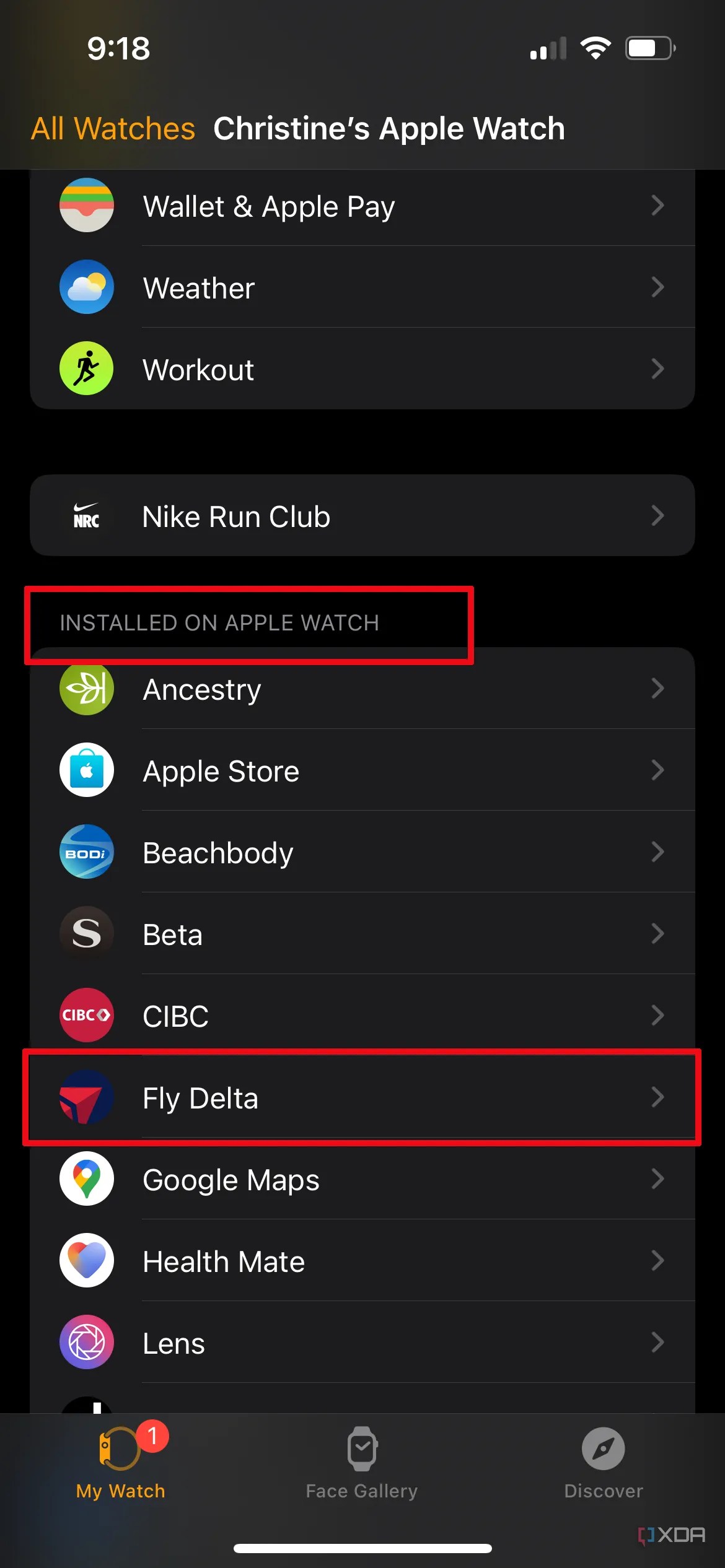
- Step 1: Open the Watch app on your iPhone.
- Step 2: Tap the 'My Watch' tab at the bottom of the screen.
- Step 3: Scroll down to the 'Installed on Apple Watch' section.
- Step 4: Tap on the app you want to delete.
- Step 5: Toggle off the 'Show App on Apple Watch' option. This effectively removes the app from your watch face.
- Step 6: For third-party apps, you might also see an option to 'Delete App' completely from your iPhone and watch.
Troubleshooting Common Apple Watch App Deletion Issues
What if an App Won't Delete?
Occasionally, an app might stubbornly refuse to disappear, even after following the steps. This can be frustrating, but typically, a few common troubleshooting steps can resolve the issue. Don't panic; these are usually minor software glitches rather than serious problems with your device.
One of the first things to try is a simple restart of both your Apple Watch and your iPhone. Sometimes, a quick reboot can clear temporary software conflicts that prevent app deletion. It's the tech equivalent of "have you tried turning it off and on again?" and it often works wonders.
Another common reason an app might stick around is an outdated watchOS version. Ensure both your Apple Watch and iPhone are running the latest software updates. Apple frequently releases fixes that can resolve these kinds of bugs, so staying current is always a good practice. Check for updates regularly.
- Restart Both Devices: Power off your Apple Watch and iPhone, then turn them back on.
- Check for Software Updates: Ensure watchOS and iOS are updated to the latest versions.
- Unpair and Re-pair: As a last resort, unpairing your Apple Watch from your iPhone and then re-pairing it can often resolve deep-seated issues. This effectively resets the watch.
- Reset Settings: You can try resetting just the settings on your Apple Watch via the iPhone Watch app under General Reset.
Optimizing Your Apple Watch for Peak Performance
Maintaining a Lean and Responsive Device
Beyond simply knowing how to delete apps on Apple Watch, regular app management is key to sustained performance. A clean app environment isn't a one-time task; it's an ongoing practice that keeps your device running smoothly day in and day out. Think of it as digital housekeeping for your wrist.
Periodically review your app grid and the 'Installed on Apple Watch' section in your iPhone's Watch app. This habit helps you identify and remove apps that have fallen out of favor or are no longer serving a purpose. It's a small investment of time that pays off in a snappier, more enjoyable user experience.
Consider the trade-offs: while some apps offer great utility, many can be resource hogs, especially those with constant background refreshes. Prioritize apps that genuinely enhance your daily routine and don't hesitate to remove those that simply add clutter without real value. Your Apple Watch will thank you with improved battery life and responsiveness.
| Optimization Tip | Benefit | Frequency |
|---|---|---|
| Regular App Review | Prevents clutter, boosts speed | Monthly/Quarterly |
| Software Updates | Bug fixes, performance improvements | As available |
| Background App Refresh | Saves battery, reduces data use | As needed per app |
| Unpair/Re-pair | Resolves stubborn issues | Last resort troubleshooting |
Frequently Asked Questions About Apple Watch App Management
Can I delete all apps from my Apple Watch?
No, you cannot delete all apps from your Apple Watch. Essential built-in apps like Activity, Workout, and Heart Rate are integral to the watchOS and cannot be removed. You can delete most third-party apps and some pre-installed Apple apps through either your watch or the paired iPhone, allowing for significant customization and decluttering.
Does deleting an app from my Apple Watch also delete it from my iPhone?
Generally, deleting a third-party app directly from your Apple Watch does not automatically delete its corresponding app from your iPhone. However, if you delete an app via the iPhone Watch app by toggling off 'Show App on Apple Watch' or selecting 'Delete App', it removes it from the watch. The iPhone app usually remains unless you specifically choose to delete it from the iPhone's home screen.
How do I reinstall an app I accidentally deleted?
Reinstalling a deleted app on your Apple Watch is straightforward. Open the App Store on your Apple Watch or the Watch app on your iPhone. Search for the app you wish to reinstall. If you previously owned it, a cloud icon will appear; tap it to download. If not, tap 'Get' to re-download it. The app will then reappear on your watch.
Why is there no 'X' to delete an app on my Apple Watch?
If you don't see an 'X' icon when long-pressing an app on your Apple Watch, it usually means it's a core Apple app that cannot be deleted directly from the watch itself. Some pre-installed Apple apps also lack this option. For these, you might be able to remove them by going through the Watch app on your paired iPhone, if deletion is supported at all.
Will deleting apps improve my Apple Watch's battery life?
Yes, deleting unused apps can potentially improve your Apple Watch's battery life. Apps, especially those that run in the background or frequently refresh data, consume power. By removing unnecessary apps, you reduce background activity and the demand on your watch's processor and network, leading to better battery performance throughout your day.
Can I delete apps from my Apple Watch if my iPhone is not nearby?
Yes, you can delete many third-party apps directly from your Apple Watch even if your iPhone is not nearby or connected. The process involves long-pressing the app icon on your watch's app grid until it jiggles and then tapping the 'X' icon. However, for certain built-in apps or more extensive management, your iPhone will be needed.
Key highlights
Remove Apple Watch apps, manage watch storage, delete third party apps, uninstall built in watch apps, clear Apple Watch clutter, optimize Apple Watch performance, free up watch space
Gallery
How To Delete Apps On Apple Watch Iphone 2024 Guide Beebom App Option Macrumors From Your Support Watchos Series SS Quickly List View IOS Hacker FEAT2 Youtube Maxresdefault Any Step By Pre Installed.
How To Remove Apps From Your Apple Watch Delete Installed Add Step By Guide Igeeksblog Using The Iphone App Support CA Ios Pro My Available Any On 2026 Smartbodytouch Directly Close Watchos Or Later Unused Free Up Space Ways An Youtube Maxresdefault Connectivity Issues After Update Fix Min Quickly.
Watchos How To Delete Built In Apps From Your Apple Watch Macworld WATCHOS6 Primary 100806636 Orig WATCHOS6 100806636 December 2023 Featured 2023 See All Including Alphabetically 9TO5MAC Walkthrough On Youtube Hqdefault App Install Add And Manage Directly Ways Pedometer Grid Fix Prevent Battery Drain Free Up Storage Techtouchy Steps Removing Backups Iphone Igeeksblog 2023 Guide Beebom Image.